
 OpenPost
Workflows
Build your first workflow with GitHub or RSS, create drafts for review, and inspect every run in OpenPost.
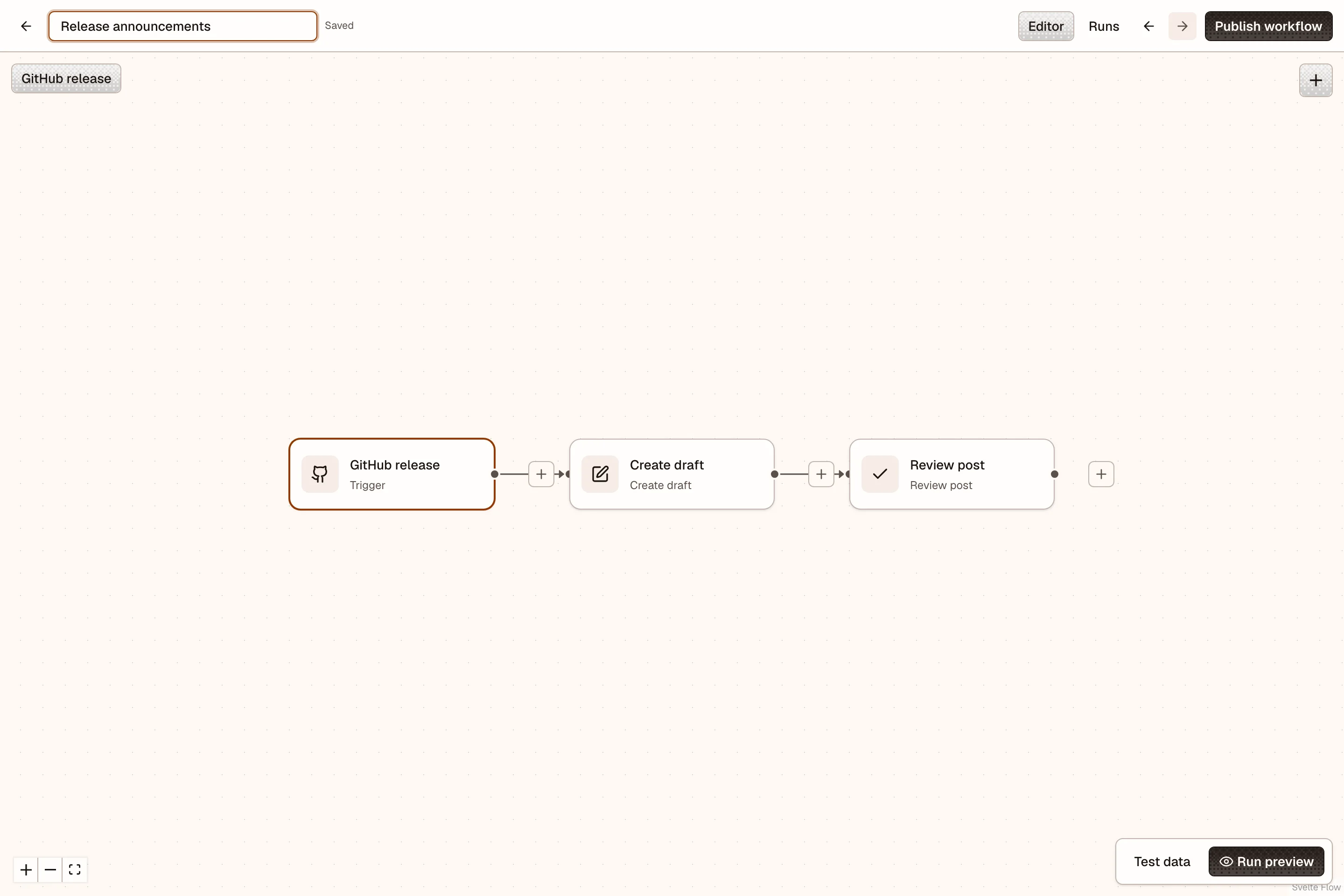
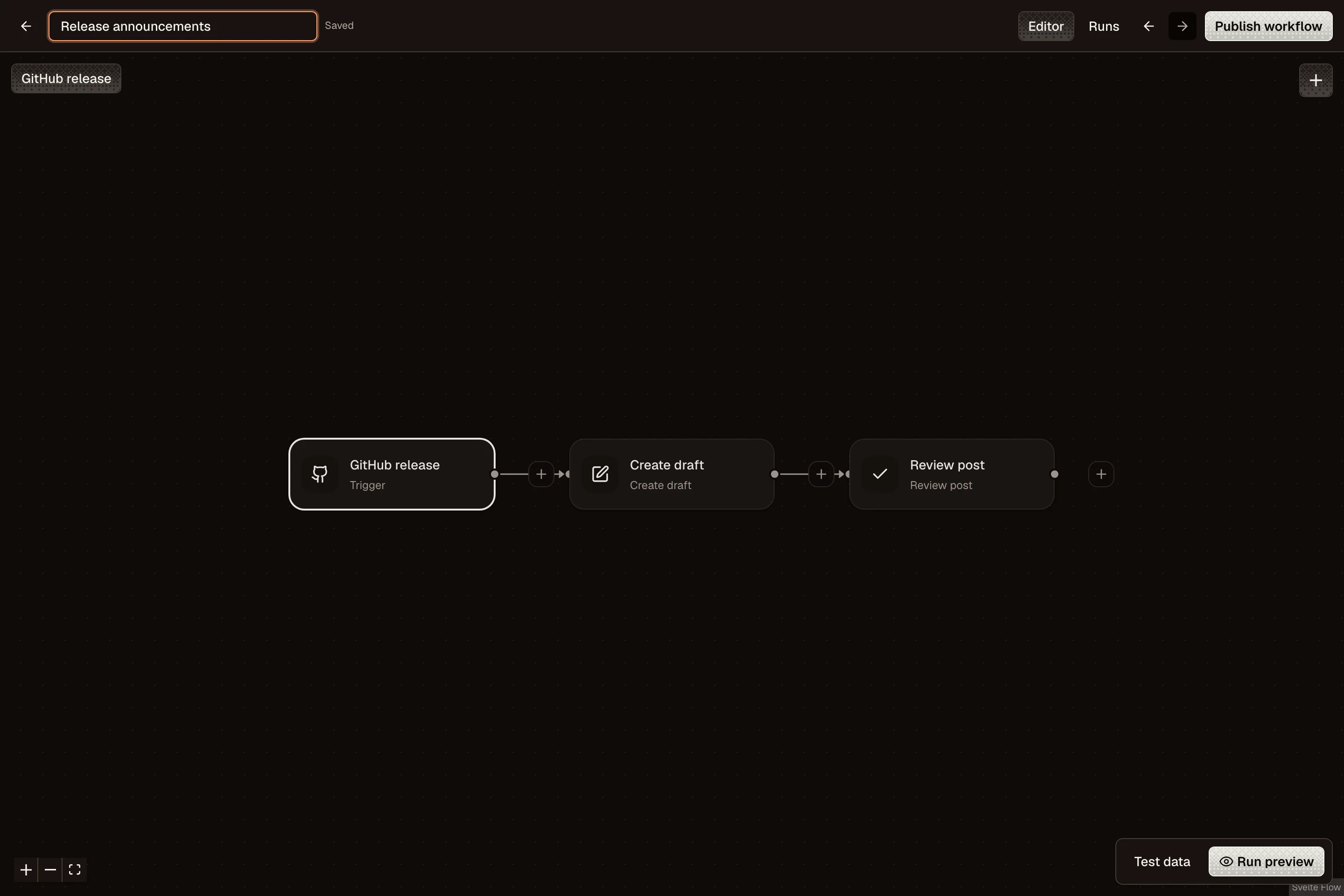
Open More → Workflows in your workspace, or open Workflows. Start from a GitHub release, RSS feed, or follow-up template, or choose New workflow to build your own. No separate automation service is required.
Workflows use your existing OpenPost accounts and posts. They can create drafts, use AI, wait for review, schedule posts, branch, read metrics, queue replies, call APIs, and transform data. Your existing repost rules also appear in Workflows.
Choose a starting point
A trigger decides when a workflow starts. Each step uses the trigger's data or the output of an earlier step. A run is one execution, with its own inputs, results, and history.
| You want to… | Start with… |
|---|---|
| Prepare a post for each product release | Announce a GitHub release |
| Turn new articles into drafts | The RSS feed template |
| Prepare a weekly roundup | Turn feed articles into a digest |
| Decide which updates are worth sharing | Review relevant updates with AI |
| Use data from another service | Turn an API response into a post |
| Reshare a published post | A repost rule under Reposts |
See workflow examples for guided setups. If your automation already runs in n8n, use the separate OpenPost n8n connector.
Make a release announcement
- Select Start from a template, then Use template under Announce a GitHub release.
- Open the trigger marked Needs attention and enter your GitHub repository as
owner/repository. - Select Create draft on the canvas or in the Steps menu.
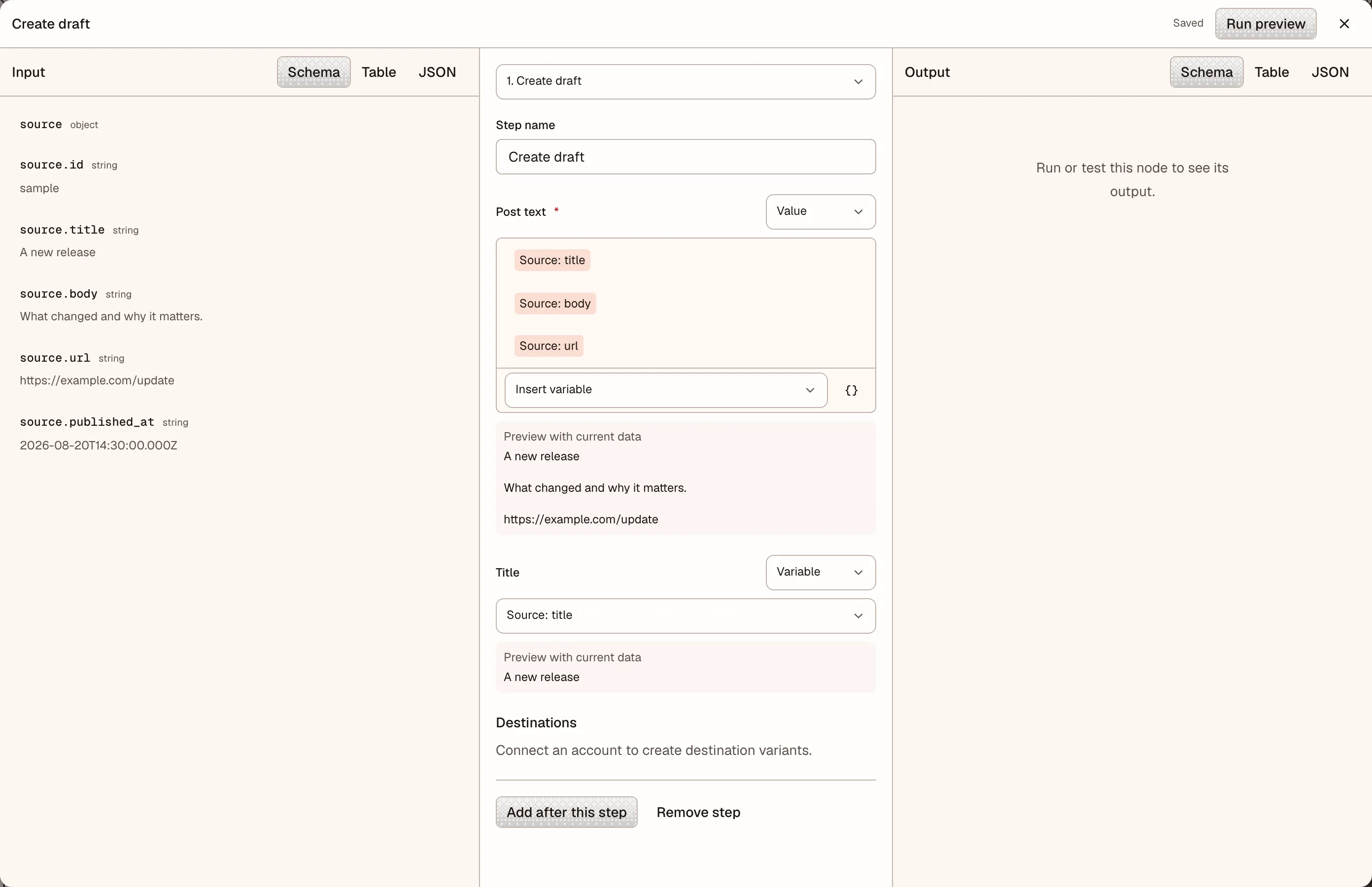
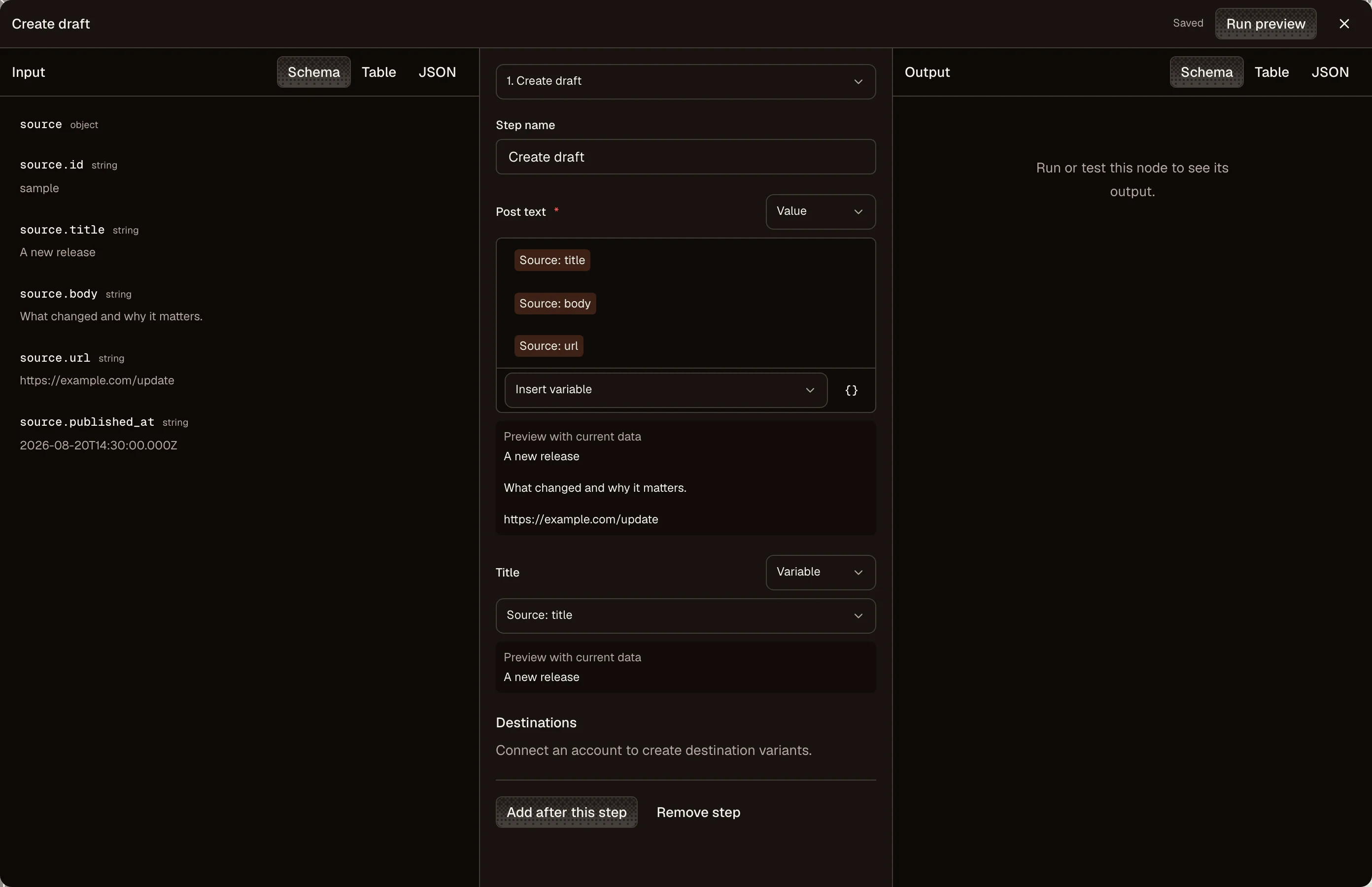
- Write the post and use Insert variable to include the release title, notes, or link. Select the destination accounts. Check both the provider and account name, especially when you use the same handle on several networks.
- Keep Review post after the draft so each announcement waits for a decision.
- Close the node, open Test data, and use the supplied example or Fetch an example. Select Run preview, then inspect the inputs and outputs.
- Resolve any Needs attention warnings and select Publish workflow to start watching for future releases.
Publish workflow activates the automation. It does not publish a social post. This template creates a draft and waits for review; it has no scheduling step. To publish the approved draft, open it in Publications and schedule it yourself, or add a scheduling step.
Public GitHub repositories need no connection. For a private repository, a workspace administrator can save a GitHub access token on the Connections page. Give the token access to the intended repository and permission to read its contents. OpenPost stores it encrypted and does not include it in run data.
GitHub and RSS/Atom sources check every five minutes. Activation records existing items as the starting point; they do not create runs. Future items start runs once each. A feed can only supply items it still retains. Catching up across many GitHub releases may take several checks.
Edit a workflow
Changes save automatically. Saved confirms the current draft reached the server. If another editor changes the same workflow, resolve the conflict before continuing.
Draft edits take effect for automatic runs when you publish the workflow again. Runs already started retain their original definition. Use the canvas to select steps or the Steps menu to navigate with the keyboard. The editor fills the window. Select Add step, use a node’s plus button, or drag its output dot to empty space to choose the next node. On a phone, switch between Input, Configure step, and Output, then use Back to canvas.
A condition or AI decision has a Yes path and a No path. After the chosen path finishes, the run continues with the following step. Fields can refer to source data or an earlier step on the same path. Missing data fails the step instead of silently substituting an empty value.
For equality conditions, a number or boolean from an earlier step accepts the corresponding entered value, such as 10 or true. Two text values use exact text equality. Contains ignores letter case. Numeric comparisons reject values that cannot be read as finite numbers.
Triggers and tools
Choose a manual trigger, GitHub release, RSS/Atom item, interval, new post, published variant, or publishing failure. Interval triggers run every 5 minutes to every 30 days. They skip missed intervals after downtime. New-post triggers exclude posts created by automation. Failure triggers preserve recorded failures even if the post is retried before the next check.
The node picker groups content, flow, AI, data, and tool actions. Use AI text to summarize, rewrite, translate, or draft from supplied material. AI decision applies written criteria and returns a Yes/No result with a reason. Token usage and provider-reported costs are recorded. No workflow spending limit is enforced yet.
Data nodes edit fields, transform text, parse JSON, filter/sort/limit lists, merge data, format dates, and add UTM tracking parameters. Read RSS feed fetches current feed items inside a workflow, useful for a weekly digest.
JavaScript receives the selected data as input and returns a JSON value. It runs in an isolated environment with a two-second deadline and a 32 MiB JavaScript heap. It cannot access the network, files, or host environment. Use HTTP request for API calls.
Variables and node data
Required fields and unavailable variables show an inline error and a Needs attention badge on the node. Select the badge to open its configuration.
Text fields display inserted variables as separate chips. Edit variable syntax exposes the underlying field paths. The value preview uses the current sample or run data. Drop or select a variable in a JSON field to preserve its array or object value.
The node inspector opens in a large modal over the canvas, with input data on the left, settings in the middle, and output on the right. Switch between structure, table, and JSON views. Table view shows item collections as rows. On a phone, it opens as a sheet with three inspector tabs. Close it to return to the selected node.
Connections and custom requests
Open Connections from the Workflows library to add or replace credentials. GitHub tokens, Bearer tokens, API key headers, and Basic authentication are supported. Secret values are encrypted and are never shown again after saving.
Custom credentials are restricted to the exact HTTPS host you choose. Select the saved connection in an HTTP node. Configure the method, query parameters, headers, body, timeout, and response format, or import a cURL request. Unsupported flags, shell commands, and local file reads are rejected. Put authentication in Connections rather than the cURL command or raw headers.
Requests reject private-network destinations, have a maximum 30-second timeout, and retain up to 256 KiB of response data. An interrupted external request stops for inspection rather than being sent again automatically. Verify its remote outcome before starting another run.
Preview and live runs
Run preview resolves your fields and conditions using example outputs for native actions. It creates no posts, invokes no AI generation, queues no replies, and skips waits and approvals. Metric values, HTTP responses, and AI decisions in a preview are examples.
Test node makes a real call for the selected HTTP, feed, or AI node, or executes a data transformation. Later steps do not run. It uses the data shown in the inspector and records the result in run history. HTTP writes can change the remote service, and AI calls record usage. Node tests require a workspace administrator.
Reading source examples is a real read from the selected source. It does not start a run or change which future items will be admitted.
Run live performs the saved draft's configured actions using the sample input currently shown. Use it only when you intend those actions to occur. It can create posts or queue work even while automatic runs are paused.
Review and schedule
Open Runs, select a run waiting for approval, and inspect the displayed post revision and destination variants. Open post opens the normal editor. After editing, return to the run and review its current revision before approving it.
To schedule an approved post, add Schedule post after Review post. Select the review step's post and revision as its inputs. A later edit to the post makes that revision stale and blocks scheduling until the conflict is resolved. Scheduling still follows normal account, provider, and publishing checks.
The AI draft step uses the configured AI Builder. Metrics come from successful, recent Analytics observations; unavailable or stale metrics are errors, not zero counts. Replies use the native publishing queue and the destination's provider rules.
Track AI usage
Open a run and expand an AI step to see its recorded token usage and cost when the provider supplies it. Node tests also count as real AI calls. Preview runs use examples and do not call AI.
There is no workflow dollar spending cap yet. A missing cost is not a promise that a call was free. Start with a small set of inputs and inspect usage before enabling a frequent trigger.
When a run needs attention
| What you see | What to do |
|---|---|
| Needs attention on a node | Open it, fill the marked fields, and fix missing variables. Fetch an example if you need to inspect the source shape. |
| No automatic runs after activation | Wait for a new source item. Items already present at activation are the starting point, not a backlog. Check that the workflow is active and the repository or feed is accessible. |
| A run waiting for review | Open Runs, inspect the post, and approve its current revision. A preview does not wait for approval. |
| A stale post revision | Open the post, review the latest changes, and return to the run. Do not schedule using an old revision. |
| An HTTP call with an uncertain outcome | Check the remote service before starting another run. The request might have succeeded even if its response was interrupted. |
| A failed or disconnected destination | Inspect the post in Publications and reconnect the account if needed. A successful workflow step does not prove every destination published. |
Changing a workflow fixes its draft, not a run that already started. Publish the updated draft for future automatic runs. Before starting another live run, check whether the failed run already created a post or sent a request.
Inspect, pause, and stop
Run details show each step's input, output, result, and failure. Drafts, scheduled posts, and provider outcomes remain visible in Publications.
Pause new runs stops automatic admission. Existing runs continue. Cancel remaining steps stops the rest of one run; an action already accepted may finish. It does not delete a draft or cancel a publication already queued. Manage that post in Publications when needed.
Delete a workflow only after pausing it and finishing or cancelling its active runs. Deletion removes its run history; created posts remain. Remove a connection from workflow drafts and pause active revisions using it before deleting the connection.
Workspace viewers can inspect workflows. Editors can configure and preview them. Administrators can publish workflows, start live runs, approve posts, cancel runs, and manage connections. Execution rechecks the activating user's access.
A workflow supports up to 40 steps and four branch levels. A workspace supports 100 workflows and 1,000 active runs. Runs expire after 30 days. The run list shows the latest 50 runs. These are execution limits, separate from plan limits and provider capabilities.
Existing reposts and first comments
Repost rules move into Workflows automatically. Their active or paused state, source and target accounts, engagement gates, repost cycles, and account grants stay intact. Scheduled reposts continue with their saved rules. There is no import button and no need to recreate them.
Open a repost rule to change its settings or inspect Runs, including custom reposts configured on individual posts. Expand a rule to see its accounts and timing; engagement gates remain collapsed until needed. Start with a one-day repost, a one-day and three-day cycle, or a repost after ten likes. New templates start paused so you can choose the accounts and enable them deliberately.
Pausing a rule stops new runs. Reposts already accepted continue. Per-post Do not repost and Custom choices still take precedence. First comments configured on a post remain separate. A follow-up workflow adds another reply, so avoid duplicating an existing first comment.